Here’s the step-by-step guide on how to connect Recomma Quiz to Meta Pixel.
Meta Pixel integration lets you see which users start the quiz, complete it, and reach the result page — and then use this data to improve your ads, retarget quiz takers, and measure real performance instead of guessing.
This guide is perfect for e-commerce owners, marketers, and Shopify admins who want to always be on track of quiz performance and receive valuable audience data for Meta ads and Meta campaigns.
Use Recomma Quiz event tracking and make data-driven decisions with your quiz funnel.
Prerequisites #
Everything you must have before beginning:
- Installed Recomma Quiz Shopify app
- Facebook & Instagram Shopify app
- Active Meta Business Suite account
How to Connect Quiz to Meta Pixel #
You only need to take these 3 steps to connect Recomma Quiz to Meta Pixel:
1) From your Recomma Quiz dashboard, select the Integrations tab.
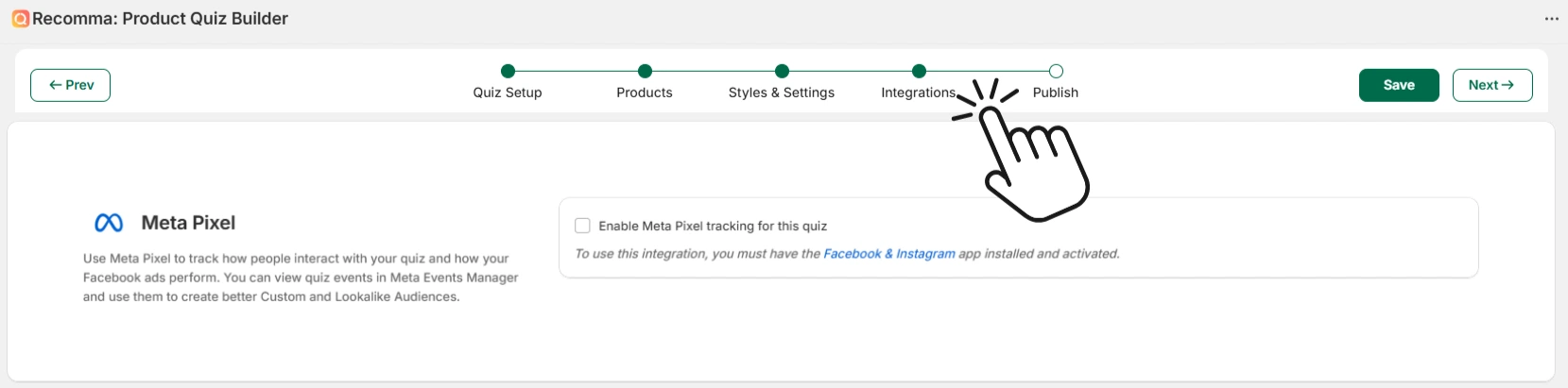
2) Scroll down and click on the Meta Pixel integration checkbox.
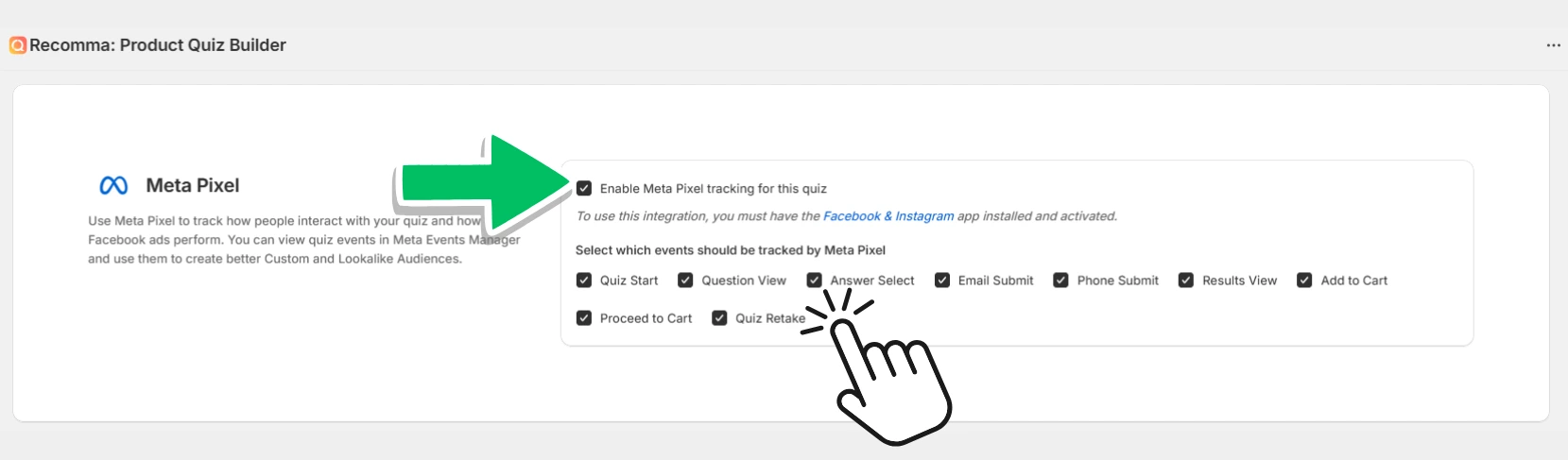
3) Choose the event you want to track (you can select all of them or choose just the necessary ones) and “Save” the changes.
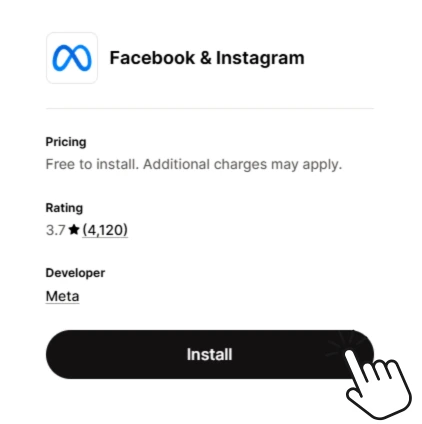
Please do not forget to make sure that you have installed and activated the Facebook & Instagram Shopify App (it’s completely free), otherwise the Meta Pixel integration won’t work.
That’s it, now you can always track quiz conversions with Meta Pixel.
Tracking Events #
Once enabled, the Meta Pixel integration, now you can choose the event you want to be in track of. The integration allows you to track key user actions throughout the quiz funnel.
Tracked events include:
Quiz Start – when a visitor starts the quiz
Question View – when a quiz question is displayed

Answer Select – when a user selects an answer
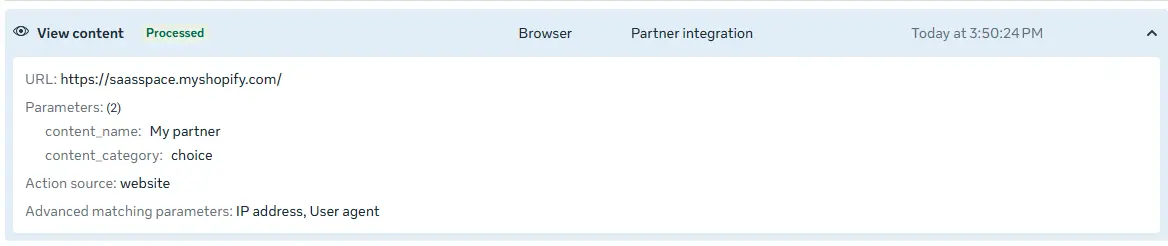
Email Submit – when user’s email address is submitted
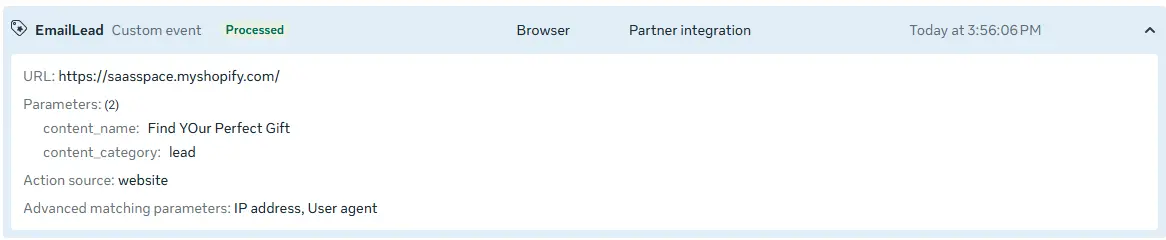
Phone Submit – when a user submits phone number
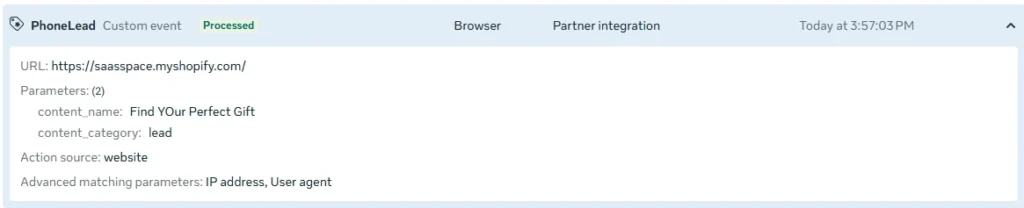
Results View – when the quiz results page is shown

Add to Cart – when a product is added to the cart directly from the quiz
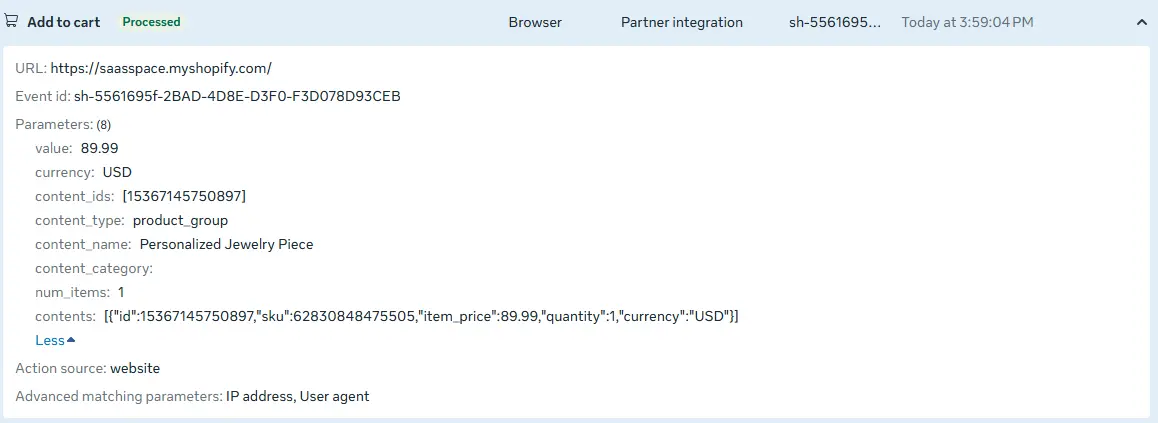
Proceed to Cart – when a user goes to checkout section
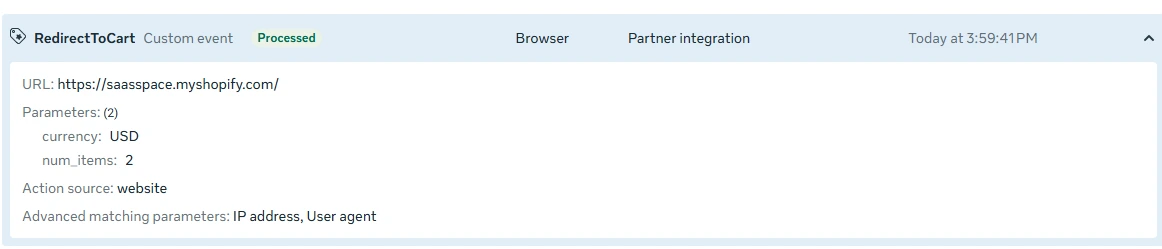
Quiz Retake – when the quiz is restarted
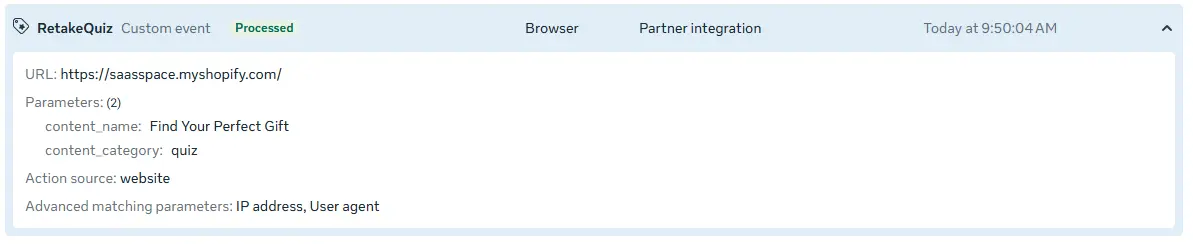
These events will help you to follow the users’ behavior throughout the whole buying process, target the right audiences, and optimize your Meta ad campaigns for better conversions.
Testing the Meta Pixel #
To test and see the results of this integration, you need a Meta Business Account.
- Log in to your Meta Business Account and from the sidebar select your preferred “Datasets” or create the new one.
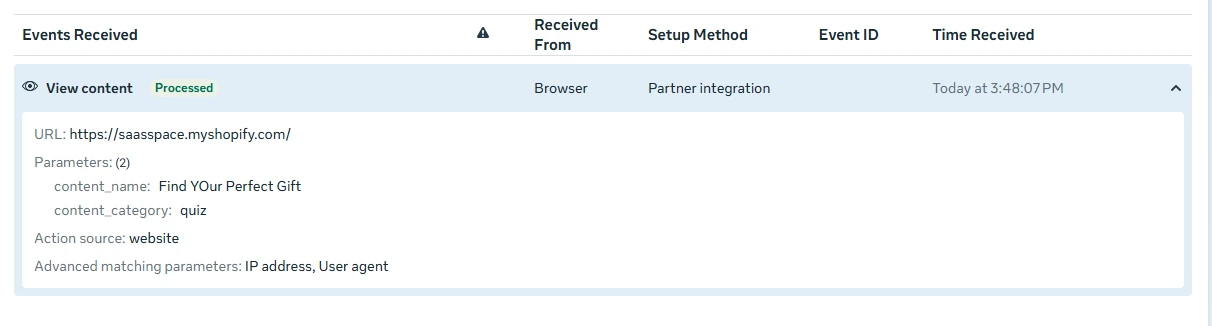
- Go to the “Test Events” section and paste your quiz’s URL to see the event results you have formerly selected to track.
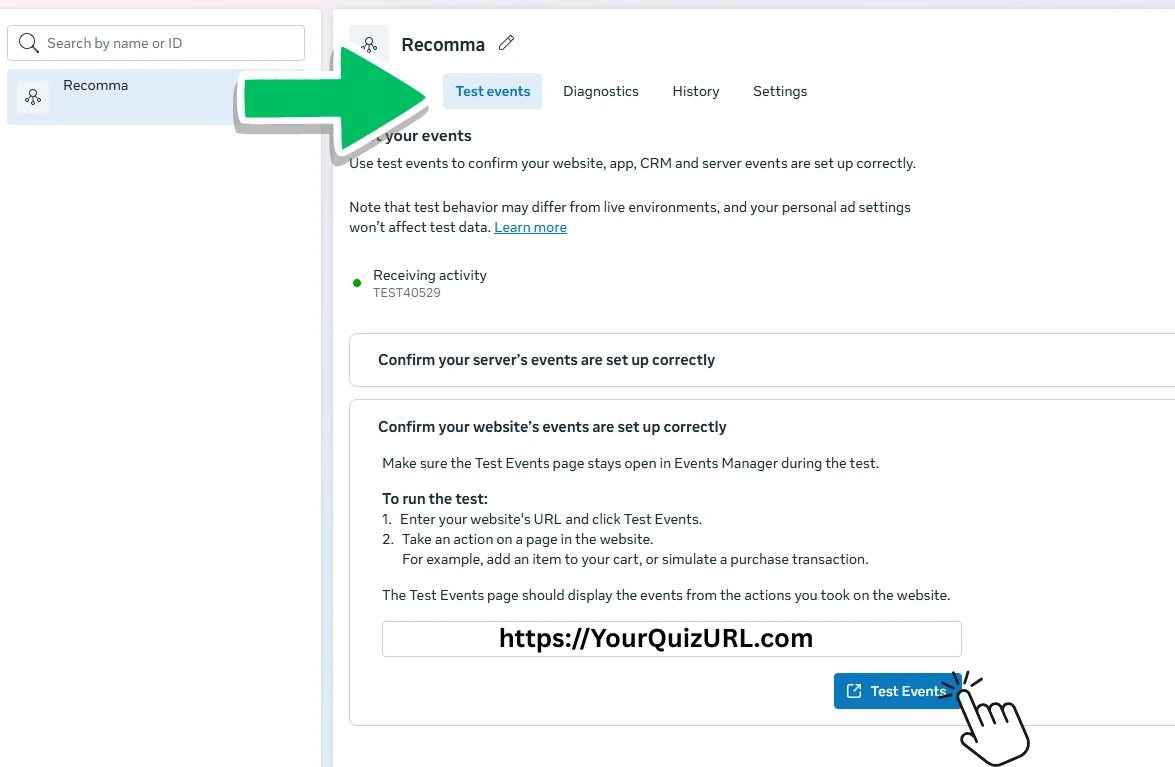
That’s it! You are all set. Your quiz is now connected to Meta Pixel and ready to provide customers with valuable data.
Start analyzing results and optimizing your marketing steps right now!


