A/B testing helps you compare two versions of a quiz to see which one performs better.
Instead of guessing what works best for your audience, you can test different versions of your quiz and use real data to make decisions.
For example, maybe you want to know whether users respond better to a shorter quiz or a more detailed one.
You create:
- Version A: 10 questions
- Version B: 5 questions
After testing both versions, you discover that the shorter quiz increases completions by 30%.
You can then confidently choose the version that delivers better results.
And now here’s how you can access it in Recomma.
Step 1: Access A/B Testing #
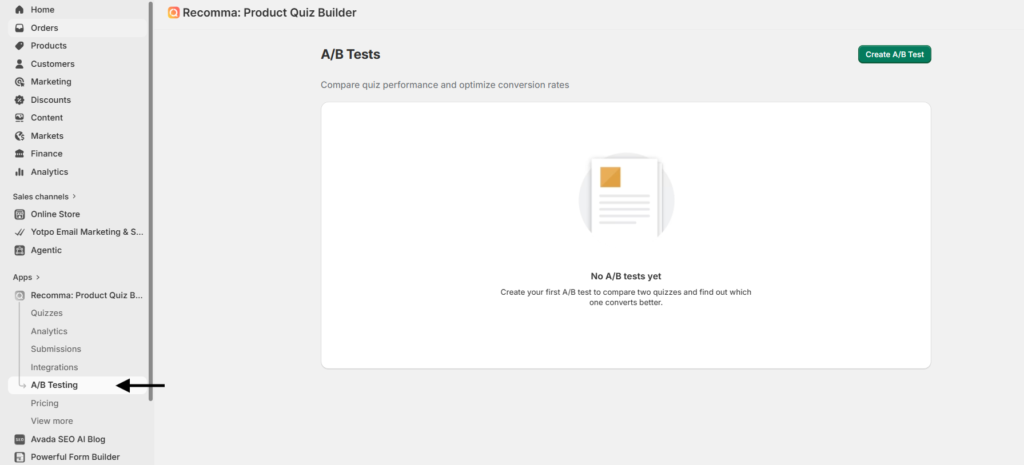
Find the A/B testing in Recomma under the integrations tab in the left side bar menu.
Step 2: Create the A/B Test #
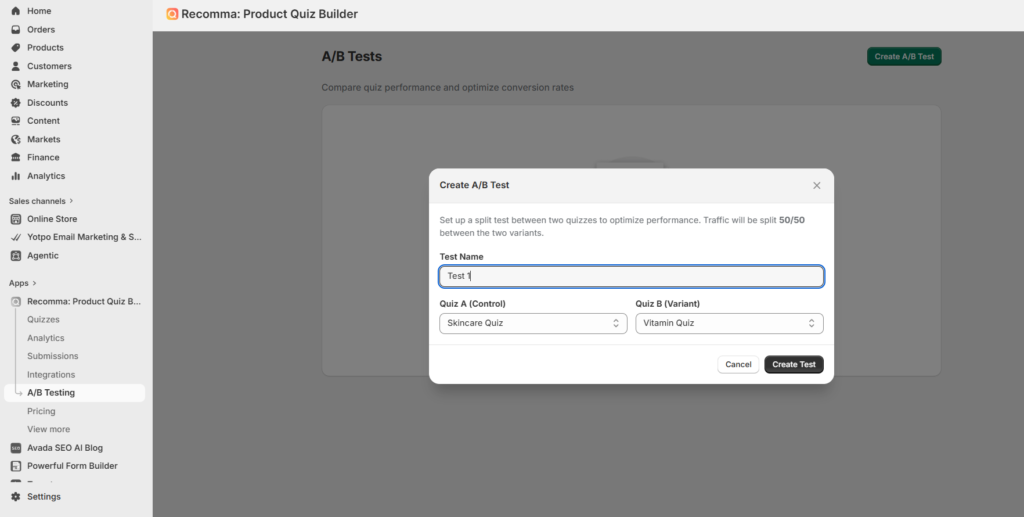
Click on the “Create A/B Test” button, and you’ll see where you can fill in the name of the test. This is for internal use only, which means it’s only visible to you, and then you choose the quizzes you want to compare. After filling it all out, click “Create Test.”
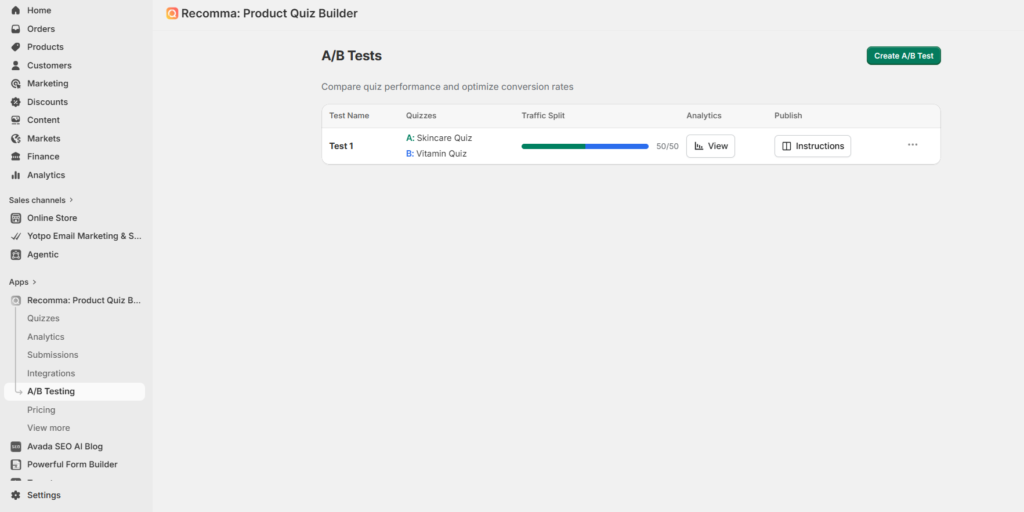
And that’s it. You can see the Traffic Split appear on your screen. It determines how your audience is divided between quiz versions. For example, here a 50/50 split means half of the visitors see Version A and the other half see Version B.
Analytics #
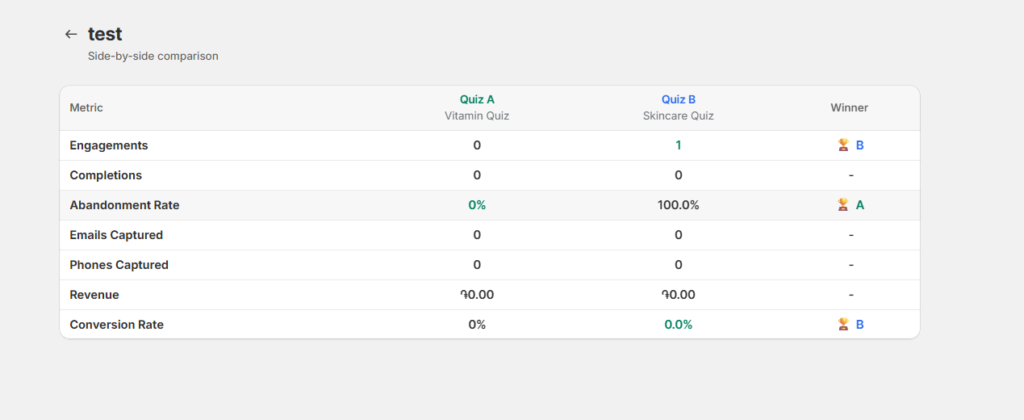
Once your A/B test is live, you can access the “Analytics” tab to compare both quiz versions side by side. This is where you can track metrics like engagements, completions, abandonment rate, emails captured, revenue, and conversion rate, and Recomma will even highlight the winning version based on performance.
Step 3: Publish your A/B Testing #
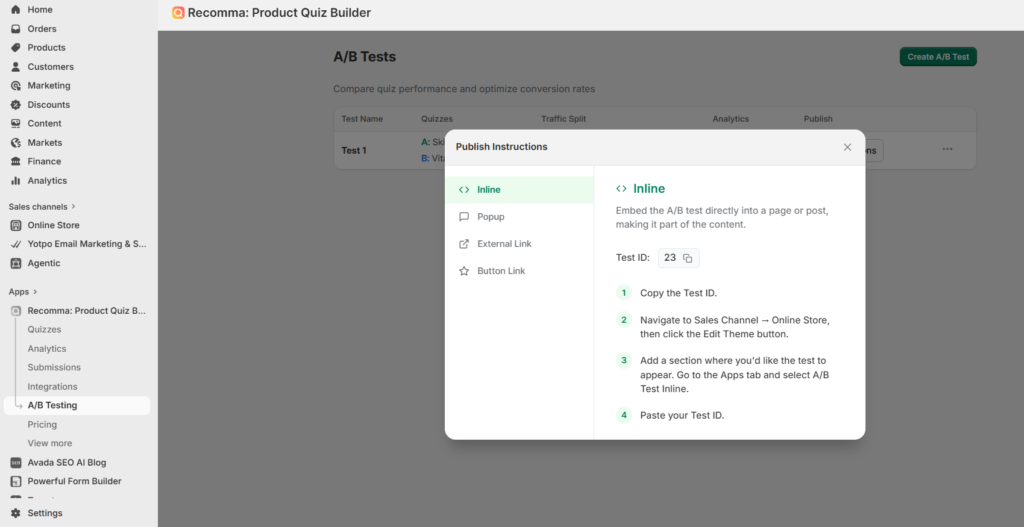
Click on “instructions,” and you’ll see a menu with all the publishing types and the instructions to follow them.
For Inline #
1. Copy the Test ID.
2. Navigate to Sales Channel → Online Store, then click the Edit Theme button.
3. Add a section where you’d like the test to appear. Go to the Apps tab and select A/B Test Inline.
4. Paste your Test ID.
For Popup #
1. Copy the Test ID.
2. Go to Sales Channel → Online Store, then click the Edit Theme button.
3. In the App Embed section, activate A/B Test Popup.
4. Paste your Test ID and adjust settings such as open delay, and more.
For External Link #
With “External Link,” you basically create a standalone link that opens your A/B test in a full-screen pop-up.
1. Copy the Link ID.
2. You can use this link in your social media, newsletters, or emails.
3. Make sure ‘A/B Test Link Quiz’ is enabled in App Embeds of your theme.
For Button Link #
1. Copy the Link ID.
2. Go to Online Store → Themes → Edit Theme.
3. Create a new button or edit an existing one from the left sidebar.
4. Paste the copied element in the button link input.
5. Save your changes.
Conclusion #
A/B testing in Recomma makes it easy to optimize your quizzes.
Create two versions, test different ideas, compare results, and keep improving your quiz experience.


